"I paid for a top-of-the-line computer. Why does it feel slower than my old one?" I hear some version of this every week. The processor is fast, the graphics card is fast, and the NVMe drive is rated at thousands of megabytes per second — and yet the machine stutters, takes forever to boot, and freezes for a few seconds whenever you open a folder. Fast parts don't stay fast on their own. Here's what's usually going on, in plain English, and how I track it down.
💾 Why a Full NVMe Drive Slows Everything Down
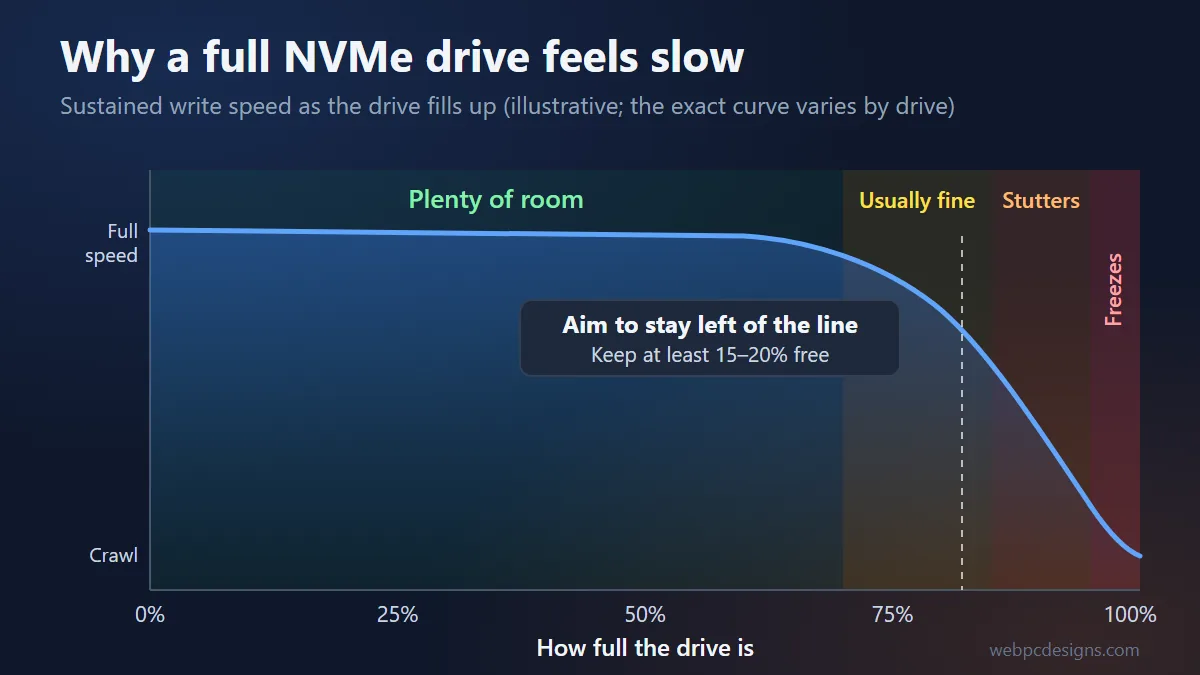
NVMe drives are incredibly fast — when they have room to work. The speed number on the box is measured on a mostly empty drive. As it fills up, several things quietly change behind the scenes.
Think of it like a warehouse. When the warehouse is half empty, workers can drop new boxes anywhere and tidy up later. When it's packed to the ceiling, every new delivery means moving old boxes around first to make space. The workers are just as fast as before — they're just spending all their time shuffling instead of working. That's roughly what happens inside your drive.
1. The "fast lane" shrinks
Most modern NVMe drives use part of their empty space as a high-speed write cache (often called an SLC cache). New data lands there first at full speed and gets sorted into permanent storage later. The catch: that cache is carved out of free space. Fill the drive, and the fast lane shrinks — sometimes to almost nothing. Once it runs out, write speeds can drop dramatically, on some budget drives to below what an old spinning hard drive could manage.
2. The drive can't clean up after itself
An SSD can't simply overwrite old data in place. It has to erase whole blocks first, and it does this housekeeping (called garbage collection, helped along by a Windows feature called TRIM) in the background using spare empty blocks. On a nearly full drive there are very few spare blocks, so the cleanup has to happen while you're waiting. That's the random little freezes and hiccups people describe.
3. More wear, more work
All that extra shuffling means the drive writes far more data internally than you actually asked it to. That's more work per task, more heat, and more wear on the drive over time.
4. Windows itself needs room to breathe
Windows constantly uses free disk space for things you never see: the page file (overflow memory), hibernation, temporary files, update downloads, and System Restore snapshots. When the drive is nearly full, updates fail, the system can't expand its working space, and programs that rely on temporary files slow to a crawl. Worse, several of those hidden files grow on their own, so a drive that was 80% full in spring can be 97% full by fall without you installing anything new.
| How Full the Drive Is | What You'll Typically Notice |
|---|---|
| Under 70% | Full speed. The drive has plenty of room to cache and clean up. |
| 70–85% | Usually fine for everyday use. Large file copies and game installs may slow down partway through. |
| 85–95% | Noticeable stutters, slower boot and app launches, Windows updates may start failing. |
| Over 95% | Freezes, crashes, failed updates, and a computer that feels "broken" despite good hardware. |
Exact numbers vary by drive model — cheaper drives with QLC memory feel it sooner and harder than premium ones.
Two more drive-related culprits
- Heat. Fast NVMe drives get hot, and when they do they deliberately slow themselves down to protect themselves (thermal throttling). A drive mounted without its heatsink, or sitting under a hot graphics card, can lose a big chunk of its speed during long tasks.
- Old firmware. Drive manufacturers release firmware updates that fix performance bugs and, occasionally, serious reliability problems. Most people never install them.
🪟 Windows Problems That Drag Down Good Hardware
Even with a healthy, roomy drive, Windows can bury a powerful machine under its own weight. The common ones:
- Startup and background clutter. Every launcher, updater, RGB lighting app, chat client, and "helper" that starts with Windows takes a slice of memory and processor time. Individually they're small. Twenty of them together are not.
- Stuck or broken updates. A Windows update that keeps failing will retry in the background over and over — downloading, unpacking, and failing again — burning disk and CPU time each cycle. Old update leftovers can also take up tens of gigabytes.
- Corrupted system files. A bad shutdown, a failing update, or a power cut can damage core Windows files. The symptoms are strange: slow menus, a Start button that won't open, settings that won't save, random error messages.
- Outdated or wrong drivers. Drivers are the translators between Windows and your hardware. An old chipset or storage driver can quietly cap your drive's speed; a bad graphics driver causes stutter that looks like a hardware fault.
- The wrong power settings. Some PCs ship — or get switched — to a power-saving plan that holds a high-end processor back. Laptops are especially prone to this.
- Search indexing and cloud sync. Windows Search and OneDrive both scan your files constantly. After a big file move or a fresh sign-in, they can keep a drive busy for hours. (If OneDrive is fighting you, I wrote about removing OneDrive properly.)
- Pre-installed bloatware. Many big-brand PCs arrive with trial antivirus, "optimizer" apps, and vendor utilities that run all the time and add nothing.
- Security features with a cost. Some Windows security features (like Memory Integrity) can cost a little performance in certain games and older apps. I don't recommend switching security off blindly — but I do check whether a specific setting is causing a specific problem.
🗂️ What About the Registry?
The Windows registry is a giant database of settings — every program you install writes to it. You've probably seen ads promising that "cleaning" it will make your computer twice as fast. Here's the honest truth:
- Leftover registry entries almost never slow a computer down on their own. Thousands of orphaned entries take up a tiny amount of space and Windows simply ignores them.
- Real registry problems are specific, not general. What actually causes slowdowns is things like broken startup entries pointing at programs that no longer exist, right-click menu add-ons that hang File Explorer, leftover services and drivers from uninstalled software, or bad "tweaks" copied from the internet.
- One-click registry cleaners can do real damage. They delete entries they don't understand, and a wrong deletion can break programs or even stop Windows from booting. Many are outright scareware designed to frighten you into paying. I cover this in my guide to spotting computer repair scams.
So yes, the registry can be part of the problem — but the fix is finding and correcting the specific broken entries, carefully and with a backup, not running a cleaner and hoping.
🔍 Other Common Causes
- Heat and dust. A clogged cooler or dried-out thermal paste makes the processor throttle itself to stay safe. It feels exactly like a slow computer. See my guide to CPU temperatures for what's normal.
- Memory running out or running slow. When RAM fills up, Windows starts using the drive as overflow (which brings us right back to the full-drive problem). On many custom-built PCs, the memory is also running well below its rated speed because its performance profile (XMP or EXPO) was never switched on in the BIOS.
- BIOS and hardware settings. A drive plugged into a slower slot, a graphics card running at reduced speed, or a basic BIOS setting left at default can all hold a fast machine back. My BIOS settings guide explains the important ones.
- Malware and hidden crypto-miners. Some malware deliberately uses your powerful graphics card or processor to make money for someone else. A high-end PC is a prime target precisely because it's powerful.
- Browser overload. Dozens of tabs and a stack of extensions can eat more memory than a modern game.
- A drive or component that's starting to fail. Drives report their own health, and a drive that's wearing out or developing errors often shows it as slowdowns long before it fails outright. This is the one you want to catch early — before you lose data.
🧩 It Could Be Any of These — That's Why Diagnosis Matters
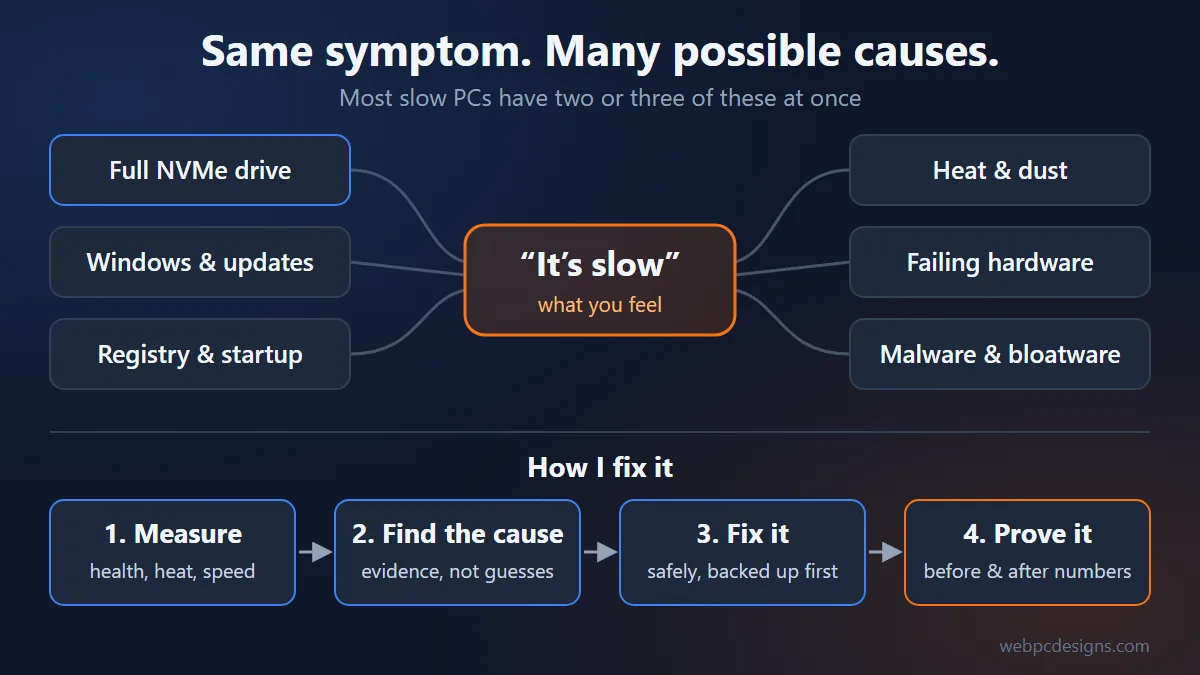
The frustrating thing about a slow PC is that almost every cause produces the same symptom: "it's slow." A nearly full drive, an overheating processor, a stuck update, and a crypto-miner can all feel identical from the chair. And it's rarely just one thing. A typical case looks like this: the drive is 93% full, which made Windows Update fail, which is now retrying all day in the background, while a dozen startup apps compete for whatever's left.
If you only fix one of those, the computer gets a little better and you wonder why it's still not right. Random fixes from forums — or a "PC booster" download — often make things worse. The answer is to measure first, then fix what the measurements actually show.
🛠️ How I Diagnose and Fix It
I've been diagnosing and repairing PCs for years, from everyday laptops to custom high-end gaming and workstation builds, and I work through slowdowns methodically so nothing gets missed. I use a toolkit of my own diagnostic and repair scripts that I've built and refined over time, combined with well-known, trusted third-party tools such as HWiNFO, CrystalDiskInfo and CrystalDiskMark, Microsoft's Sysinternals suite (Autoruns and Process Explorer), and Malwarebytes. My scripts handle the repetitive, error-prone parts quickly and consistently; the third-party tools give independent, industry-standard readings. Here's the process:
- Back up first. Before I change anything, your important files and system state are protected. Nothing I do is a gamble with your data.
- Check hardware health. Drive health and wear, temperatures under load, memory speed, and whether every component is actually running at the speed it should.
- Benchmark before. I measure drive speed, boot time, and responsiveness so we have real "before" numbers — not just a feeling.
- Free up and organize storage safely. Clear out update leftovers, temporary files, and oversized hidden system files, and move or archive large files you want to keep. I never delete your personal files without asking.
- Repair Windows. Fix corrupted system files, clear stuck updates, and correct the specific broken registry entries, services, and startup items that are actually causing trouble.
- Trim the background load. Remove bloatware and switch off unnecessary startup apps — keeping everything you actually use.
- Update what matters. Chipset, storage, and graphics drivers, plus drive firmware and BIOS where it's safe and worthwhile.
- Scan for malware. Including the quiet kind that hides in the background using your hardware.
- Benchmark after. Same tests, side by side with the "before" numbers, so you can see exactly what changed.
Most software-related slowdowns are fixed in a single visit. If I find a hardware problem — a failing drive, a worn-out cooler, a drive that's simply too small for how you use the computer — I'll explain it in plain language, show you the evidence, and give you honest options and prices before anything is replaced. The goal is always the same: a computer that performs the way it should, and a clear explanation of what was wrong.
✅ A Few Safe Things You Can Check Yourself
- Check how full your drive is. Open File Explorer, click This PC, and look at the bar under your C: drive. If it's red, that's a strong clue.
- Use Storage Sense. Go to Settings → System → Storage and review Temporary files and Cleanup recommendations. These are safe for Windows to remove.
- Look at your startup apps. Press Ctrl + Shift + Esc to open Task Manager, go to Startup apps, and disable anything you don't recognize as needed (you can always turn it back on).
- Restart properly and install pending updates. A computer that's been "shut down" for weeks with Fast Startup on may never have truly restarted.
- Feel for heat and listen for fans. Fans roaring during simple tasks usually means dust or a cooling problem.
- Skip the "PC cleaner" downloads. If a pop-up says your computer has 2,000 problems, it's selling something.
📞 Want It Done Right?
If your computer is fast on paper but slow in real life, I'll find out why — and fix it. Free diagnostics, honest explanations, before-and-after results you can see, and no fee if I can't help.
Call me at (803) 477-7499, or send a message. I'm based in Columbia, SC and serve Lexington, Irmo, Cayce, West Columbia, Chapin, Blythewood, and Elgin.